> For the complete documentation index, see [llms.txt](https://docs.gearplug.io/llms.txt). Markdown versions of documentation pages are available by appending `.md` to page URLs; this page is available as [Markdown](https://docs.gearplug.io/configura-tus-conexiones/hotmart/acciones-de-origen/obtener-suscripcion-cancelada.md).
# Obtener suscripción cancelada
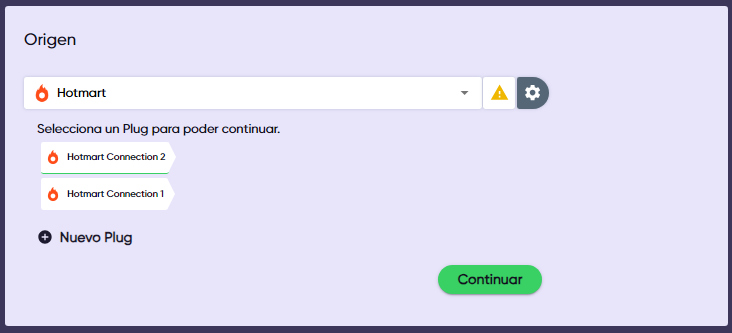
1. **Selecciona Hotmart** como tu origen debajo de “Nuevo Gear” en el menú “Gears”. Cliquea en “Crear”.
2. **Elige el Plug** que deseas utilizar y haz clic en “Continuar”.
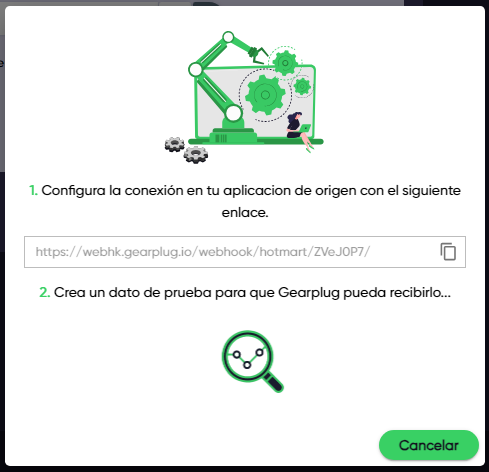
3. **Escoge “Obtener suscripción cancelada”** como tu acción y haz clic en “Crear”. GearPlug te mostrará la URL de tu webhook. Cópiala para el siguiente paso.
4. **Registra un nuevo webhook** con la URL anterior en . Asegúrate de escoger la acción que seleccionaste como tu evento a compartir (“Event to share”) y el producto a asociar, y guarda tu webhook.
{% hint style="warning" %}
Si seleccionas un evento diferente a la acción de origen, el Gear n o funcionará correctamente.
{% endhint %}
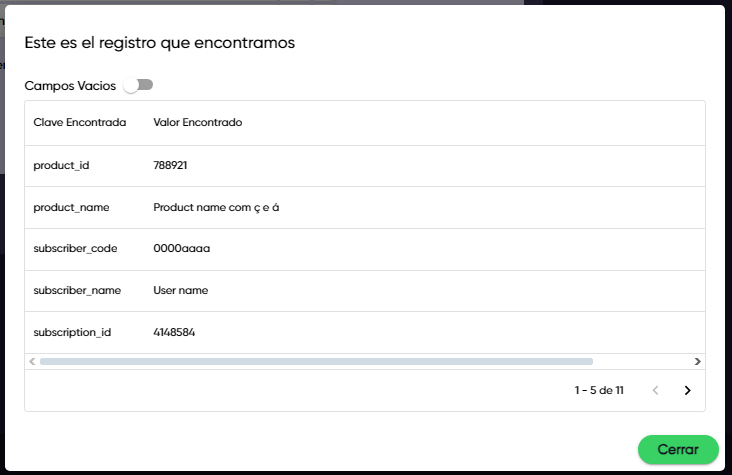
5. **Envía un registro de prueba** cuando Hotmart te dé la opción. Revisa los datos importados y haz clic en “CerrarK” otra vez para finalizar la configuración.
{% hint style="info" %}
**Campos vacíos**: Acá, verás una lista de campos que puedes importar—pero que no usaste en tu registro.
{% endhint %}